
Call Routing
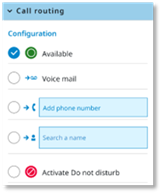
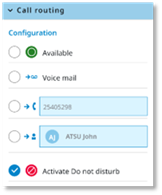
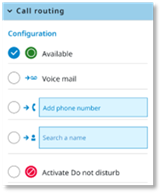
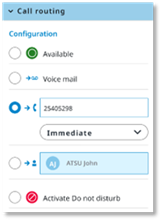
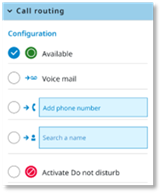
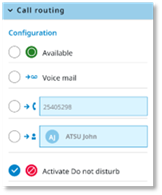
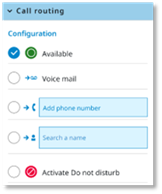
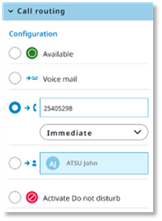
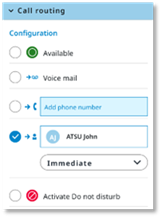
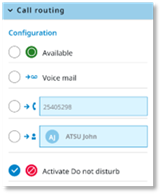
Call routing allows you to define what your phone does when you receive an incoming call.
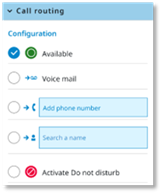
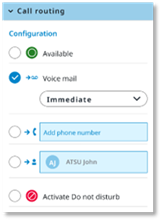
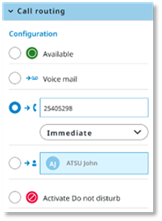
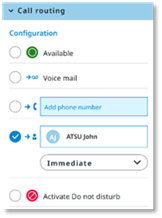
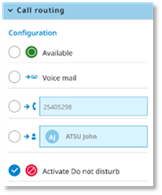
· Available.
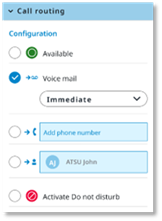
· Forward your call to your voicemail.
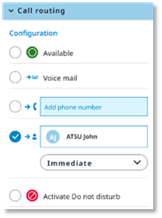
· Forward your call to an identified contact.
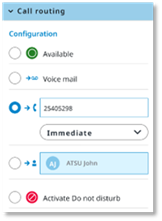
· Forward your call to another number.
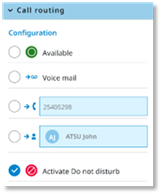
· Activate the 'Do not disturb' feature.
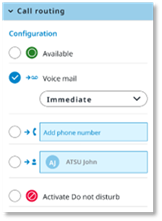
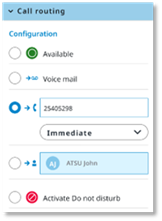
After selecting a forward, select forwarding conditions (immediately, when you are busy or/and when you don't reply).
Telephony status
Depending on the call routing, your telephony status is displayed right beside your photo/avatar (the status is displayed for your information and will only be visible on your own desk phone):
|
Blue |
Reachable. |
|
Red |
Not reachable. |
The following icons are displayed during call forwarding:
|
|
To voicemail. |
|
|
To an identified contact. |
|
|
To an unknown number. |


Depending on the selected forwarding settings, when activated an icon will be displayed against a red background to indicate immediate routing. In this case, a red banner will be displayed on the dashboard.
|
Call Routing |
Telephony status |
Telephony status |
|
|
Available (no forwarding activated) |
|
Available |
|
|
To voicemail |
Immediate. |
|
Forward to: Voicemail |
|
No answer, Busy, Busy or no answer. |
|
Forward to: Voicemail |
|
|
To an identified contact. |
Immediate. |
|
Forward to: [Contacts] |
|
No answer, Busy, Busy or no answer. |
|
Forward to: [Contacts] |
|
|
To an unknown number. |
Immediate. |
|
Forward to: [Number] |
|
No answer, Busy, Busy or no answer. |
|
Forward to: [Number] |
|
|
Do Not Disturb |
|
Do Not Disturb |
|


Open call routing management
|
Tap your photo/avatar to open the call routing settings. |
|

You can also access call routing by selecting the corresponding tab in the application settings.
 This icon is displayed when
entering a number.
 This animated icon is displayed
when the ALE SoftPhone sends new routing information to the communication
server.
 The icon is displayed once the
information has been successfully saved by the server. You can then modify the
routing conditions.
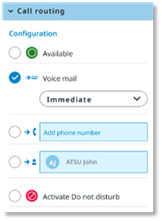
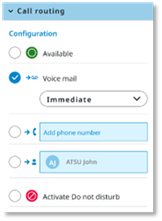
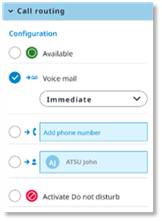
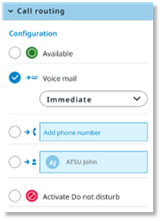
Forward all incoming calls to your voicemail immediately
|
·
· Condition: Immediate |
Status: |
|
|
|
|
|

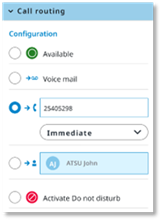
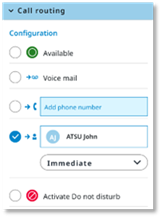
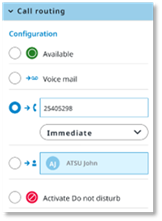
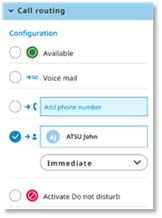
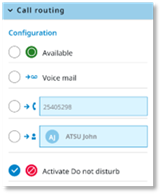
Forward all incoming calls to another number immediately
|
·
·
· Condition: Immediate |
Status: |
|
|
|
|
|


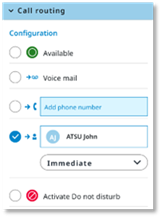
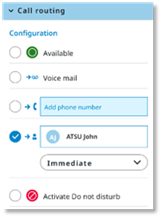
Use the 'search by name' feature to forward all incoming calls to a contact immediately
|
·
·
· Select a contact. · Condition: Immediate |
Status: |
|
|
|
|
|


Forward all incoming calls to your voicemail when you are busy and/or if you don't reply
|
·
· Select one of the following conditions: No answer, Busy, Busy or no answer. |
Status: |
|
|
|
|
|

Forward all incoming calls to another number when you are busy and/or if you don't reply
|
·
·
· Select one of the following conditions: No answer, Busy, Busy or no answer. |
Status: |
|
|
|
|
|

Forward all incoming calls to another number when you are busy and/or if you don't reply
|
·
·
· Select one of the following conditions: No answer, Busy, Busy or no answer. |
Status: |
|
|
|
|
|

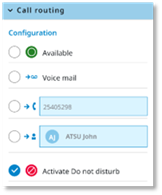
Do not disturb
|
· 'Do not disturb' option. The phone status will be updated depending on your desk phone call forwarding status. |
Status: |
|
|
|
|
|

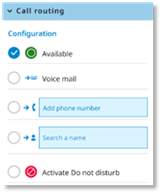
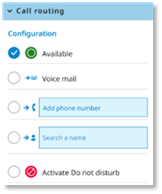
Cancelling all forwards
|
·
Available |
Status: |
|
|
|
|
|
Routage d'appels
L'acheminement des appels vous permet de définir ce que fait votre téléphone lorsque vous recevez un appel entrant.
· Disponible.
· Transférer votre appel vers votre messagerie vocale.
· Transférer votre appel vers un contact identifié.
· Transférer votre appel vers un autre numéro.
· Activer la fonction ' Ne pas déranger '.
Après avoir sélectionné un renvoi, sélectionner les conditions de transfert (Immédiatement, lorsque vous êtes occupé ou/et lorsque vous ne répondez pas).
Statut téléphonique
Selon l'acheminement des appels, votre statut téléphonique est affiché juste à côté de votre photo/avatar (le statut est affiché pour votre information et ne sera visible que sur votre propre téléphone de bureau) :
|
Bleu |
Joignable. |
|
Rouge |
Non joignable. |
Les icônes suivantes s'affichent pendant le renvoi d'appel :
|
|
Vers la messagerie vocale. |
|
|
Vers un contact identifié. |
|
|
Vers un numéro inconnu. |


En fonction des paramètres de renvoi sélectionnés, en cas d'activation, une icône s'affiche sur fond rouge pour indiquer l'acheminement immédiat. Dans ce cas, une bannière rouge s'affiche sur le tableau de bord.
|
Routage d'appels |
Statut téléphonique |
Statut téléphonique |
|
|
Disponible (aucun renvoi activé) |
|
Disponible |
|
|
Vers la messagerie vocale |
Immédiat. |
|
Renvoi vers : Boîte vocale |
|
Pas de réponse, Occupé, Occupé ou pas de réponse. |
|
Renvoi vers : Boîte vocale |
|
|
Vers un contact identifié. |
Immédiat. |
|
Renvoi vers : [Contacts] |
|
Pas de réponse, Occupé, Occupé ou pas de réponse. |
|
Renvoi vers : [Contacts] |
|
|
Vers un numéro inconnu. |
Immédiat. |
|
Renvoi vers : [Numéro] |
|
Pas de réponse, Occupé, Occupé ou pas de réponse. |
|
Renvoi vers : [Numéro] |
|
|
Ne pas déranger |
|
Ne pas déranger |
|


Ouvrir la gestion de l'acheminement des appels
|
Taper votre photo/avatar pour ouvrir les paramètres d'acheminement des appels. |
|

Vous pouvez également accéder au routage des appels en sélectionnant l'onglet correspondant dans les paramètres de l'application.
 Cette icône s'affiche lors de la saisie d'un numéro.
 Cette icône animée s'affiche lorsque le SoftPhone ALE
envoie de nouvelles informations d'acheminement au serveur de communication.
 L'icône s'affiche une fois que les informations ont été
sauvegardées avec succès par le serveur. Vous pouvez ensuite modifier les
conditions d'acheminement.
Renvoyer immédiatement tous les appels entrants vers votre messagerie vocale
|
·
· Condition : Immédiat |
Statut : |
|
|
|
|
|


Renvoyer immédiatement tous les appels entrants vers un autre numéro
|
·
·
· Condition : Immédiat |
Statut : |
|
|
|
|
|


Utiliser la fonction ' Rechercher par le nom ' pour transférer immédiatement tous les appels entrants vers un contact
|
·
·
· Sélectionner un contact. · Condition : Immédiat |
Statut : |
|
|
|
|
|


Renvoyer tous les appels entrants vers votre messagerie vocale lorsque vous êtes occupé et/ou si vous ne répondez pas
|
·
· Sélectionner l'une des conditions suivantes : Pas de réponse, Occupé, Occupé ou pas de réponse. |
Statut : |
|
|
|
|
|
Renvoyer tous les appels entrants vers un autre numéro lorsque vous êtes occupé et/ou si vous ne répondez pas
|
·
·
· Sélectionner l'une des conditions suivantes : Pas de réponse, Occupé, Occupé ou pas de réponse. |
Statut : |
|
|
|
|
|


Renvoyer tous les appels entrants vers un autre numéro lorsque vous êtes occupé et/ou si vous ne répondez pas
|
·
·
· Sélectionner l'une des conditions suivantes : Pas de réponse, Occupé, Occupé ou pas de réponse. |
Statut : |
|
|
|
|
|

Ne pas déranger
|
· Option ' Ne pas déranger '. L'état du téléphone sera mis à jour en fonction de l'état du renvoi d'appel de votre téléphone de bureau. |
Statut : |
|
|
|
|
|
Annuler tous les renvois
|
·
Disponible |
Statut : |
|
|
|
|
|

Anrufweiterleitung
Mit der Anrufweiterleitung können Sie festlegen, wie Ihr Telefon bei einem eingehenden Anruf reagiert.
· Verfügbar.
· Anruf an Ihre Voicemail weiterleiten.
· Anruf an einen angegebenen Kontakt weiterleiten.
· Anruf an eine andere Nummer weiterleiten.
· Die Funktion 'Nicht stören' aktivieren.
Nach der Auswahl einer Weiterleitung die Bedingungen für die Weiterleitung auswählen (sofort, falls besetzt oder/und wenn Sie nicht antworten).
Telefoniestatus
Je nach Anrufweiterleitung wird Ihr Telefoniestatus direkt neben Ihrem Foto/Avatar angezeigt (der Status wird zu Ihrer Information angezeigt und ist nur auf Ihrem Tischtelefon sichtbar):
|
Blau |
Erreichbar. |
|
Rot |
Nicht erreichbar. |
Während der Rufumleitung werden die folgenden Symbole angezeigt:
|
|
Zur Voicemail. |
|
|
An einen identifizierten Kontakt. |
|
|
An eine unbekannte Nummer. |


Je nach den gewählten Einstellungen für die Rufumleitung wird bei Aktivierung ein Symbol vor einem roten Hintergrund angezeigt, um die sofortige Weiterleitung anzuzeigen. In diesem Fall wird ein rotes Banner auf dem Dashboard angezeigt.
|
Anrufweiterleitung |
Telefoniestatus |
Telefoniestatus |
|
|
Verfügbar (keine Weiterleitung aktiviert) |
|
Verfügbar |
|
|
Zur Voicemail |
Sofort. |
|
Weiterleiten an: Voicemail |
|
Keine Antwort, Besetzt, Besetzt oder keine Antwort. |
|
Weiterleiten an: Voicemail |
|
|
An einen identifizierten Kontakt. |
Sofort. |
|
Weiterleiten an: [Kontakte] |
|
Keine Antwort, Besetzt, Besetzt oder keine Antwort. |
|
Weiterleiten an: [Kontakte] |
|
|
An eine unbekannte Nummer. |
Sofort. |
|
Weiterleiten an: [Nummer] |
|
Keine Antwort, Besetzt, Besetzt oder keine Antwort. |
|
Weiterleiten an: [Nummer] |
|
|
Nicht stören |
|
Nicht stören |
|


Anrufrouting-Management öffnen
|
Tippen Sie auf Ihr Foto bzw. Ihren Avatar, um die Einstellungen für die Anrufweiterleitung zu öffnen. |
|

Sie können auch auf die Anrufweiterleitung zugreifen, indem Sie die entsprechende Registerkarte in den Anwendungseinstellungen auswählen.
 Dieses Symbol wird angezeigt, wenn
Sie eine Nummer eingeben.
 Dieses animierte Symbol wird
angezeigt, wenn das ALE SoftPhone neue Routing-Informationen an den
Kommunikationsserver sendet.
 Das Symbol wird angezeigt, sobald
die Informationen erfolgreich vom Server gespeichert wurden. Sie können dann
die Routing-Bedingungen ändern.
Alle eingehenden Anrufe sofort an Ihre Voicemail weiterleiten
|
·
· Bedingung: Sofort |
Status: |
|
|
|
|
|

Alle eingehenden Anrufe sofort an eine andere Nummer weiterleiten
|
·
·
· Bedingung: Sofort |
Status: |
|
|
|
|
|

Die Funktion 'Suche nach Namen' verwenden, um alle eingehenden Anrufe sofort an einen Kontakt weiterzuleiten
|
·
·
· Einen Kontakt auswählen. · Bedingung: Sofort |
Status: |
|
|
|
|
|


Alle eingehenden Anrufe an Ihre Voicemail weiterleiten, wenn Sie beschäftigt sind und/oder wenn Sie nicht antworten
|
·
· Wählen Sie eine der folgenden Bedingungen: Keine Antwort, Besetzt, Besetzt oder keine Antwort. |
Status: |
|
|
|
|
|


Alle eingehenden Anrufe an eine andere Nummer weiterleiten, wenn Sie beschäftigt sind und/oder wenn Sie nicht antworten
|
·
·
· Wählen Sie eine der folgenden Bedingungen: Keine Antwort, Besetzt, Besetzt oder keine Antwort. |
Status: |
|
|
|
|
|


Alle eingehenden Anrufe an eine andere Nummer weiterleiten, wenn Sie beschäftigt sind und/oder wenn Sie nicht antworten
|
·
·
· Wählen Sie eine der folgenden Bedingungen: Keine Antwort, Besetzt, Besetzt oder keine Antwort. |
Status: |
|
|
|
|
|


Nicht stören
|
· Option 'Bitte nicht stören'. Der Telefonstatus wird je nach Status der Rufumleitung Ihres Tischtelefons aktualisiert. |
Status: |
|
|
|
|
|

Alle Umleitungen löschen
|
·
Verfügbar |
Status: |
|
|
|
|
|

Distribución de llamadas
El enrutamiento de llamadas permite definir lo que hace el teléfono cuando se recibe una llamada entrante.
· Disponible.
· Para desviar la llamada al buzón de voz.
· Desviar la llamada a un contacto identificado.
· Para desviar la llamada a otro número.
· Para activar la función 'No molestar'.
Tras seleccionar un desvío, seleccione las condiciones de desvío (inmediatamente, cuando se esté ocupado y/o cuando no se responda).
Estado de telefonía
Dependiendo del enrutamiento de llamadas, el estado de telefonía se muestra justo al lado de la foto/el avatar (el estado se muestra a modo de información y solamente es visible en el teléfono de escritorio):
|
Azul |
Accesible. |
|
Rojo |
No accesible. |
Durante el desvío de llamadas aparecen los siguientes iconos:
|
|
Al buzón de voz. |
|
|
A un contacto identificado. |
|
|
A un número desconocido. |


En función de la configuración de desvío seleccionada, cuando se active aparecerá un icono sobre un fondo rojo para indicar el enrutamiento inmediato. En este caso, aparecerá un banner rojo en el panel.
|
Distribución de llamadas |
Estado de telefonía |
Estado de telefonía |
|
|
Disponible (ningún desvío de llamadas activado) |
|
Disponible |
|
|
Al buzón de voz |
Immediato. |
|
Desviar hacia: Buzón de voz |
|
Sin respuesta, Ocupado, Ocupado o sin respuesta. |
|
Desviar hacia: Buzón de voz |
|
|
A un contacto identificado. |
Immediato. |
|
Desviar hacia: [Contactos] |
|
Sin respuesta, Ocupado, Ocupado o sin respuesta. |
|
Desviar hacia: [Contactos] |
|
|
A un número desconocido. |
Immediato. |
|
Desviar hacia: [Número] |
|
Sin respuesta, Ocupado, Ocupado o sin respuesta. |
|
Desviar hacia: [Número] |
|
|
No molestar |
|
No molestar |
|


Abrir gestión de enrutamiento de llamadas
|
Pulsar la foto/el avatar para abrir los ajustes de enrutamiento de llamadas. |
|

También se puede acceder al enrutamiento de llamadas seleccionando la pestaña correspondiente en la configuración de la aplicación.
 Este icono aparece cuando se introduce un número.
 Este icono animado se muestra cuando el ALE SoftPhone
envía nueva información de enrutamiento al servidor de comunicación.
 El icono se muestra una vez que el servidor ha guardado
correctamente la información. A continuación, puede modificar las condiciones
de enrutamiento.
Desviar de inmediato todas las llamadas entrantes al buzón de voz
|
·
· Estado: Immediato |
Estado: |
|
|
|
|
|


Desviar de inmediato todas las llamadas entrantes a otro número
|
·
·
· Estado: Immediato |
Estado: |
|
|
|
|
|


Utilizar la función 'buscar por nombre' para desviar inmediatamente todas las llamadas entrantes a un contacto
|
·
·
· Seleccionar el contacto. · Estado: Immediato |
Estado: |
|
|
|
|
|


Desviar todas las llamadas entrantes al buzón de voz cuando se esté ocupado y/o si no se responde
|
·
· Seleccionar una de las siguientes condiciones: Sin respuesta, Ocupado, Ocupado o sin respuesta. |
Estado: |
|
|
|
|
|

Desviar todas las llamadas entrantes a otro número cuando se esté ocupado y/o si no se responde
|
·
·
· Seleccionar una de las siguientes condiciones: Sin respuesta, Ocupado, Ocupado o sin respuesta. |
Estado: |
|
|
|
|
|


Desviar todas las llamadas entrantes a otro número cuando se esté ocupado y/o si no se responde
|
·
·
· Seleccionar una de las siguientes condiciones: Sin respuesta, Ocupado, Ocupado o sin respuesta. |
Estado: |
|
|
|
|
|
No molestar
|
· Opción 'No molestar'. El estado del teléfono se actualizará en función del estado del desvío de llamadas del teléfono de escritorio. |
Estado: |
|
|
|
|
|

Cancelación de todos los desvíos
|
·
Disponible |
Estado: |
|
|
|
|
|

Instradamento delle chiamate
L'instradamento delle chiamate permette di definire il comportamento del telefono quando si riceve una chiamata in entrata.
· Disponibile.
· Inoltrare le chiamate alla casella di posta vocale.
· Inoltrare la chiamata a un contatto identificato.
· Inoltrare la chiamata a un altro numero.
· Attivare la funzione 'Non disturbare'.
Una volta selezionato un inoltro, selezionare le condizioni di inoltro (immediatamente, quando si è occupati o/e quando non si risponde).
Stato telefonico
A seconda dell'instradamento delle chiamate, lo stato telefonico viene visualizzato accanto alla foto/avatar (lo stato viene visualizzato per informazione ed è visibile solo sul telefono fisso dell'utente):
|
Blu |
Raggiungibile. |
|
Rosso |
Non raggiungibile. |
Durante l'inoltro di una chiamata vengono visualizzate le seguenti icone:
|
|
Alla casella vocale. |
|
|
A un contatto identificato. |
|
|
A un numero sconosciuto. |


A seconda delle impostazioni di inoltro selezionate, in caso di attivazione viene visualizzata un'icona su sfondo rosso per indicare l'instradamento immediato. In questo caso, verrà visualizzato un banner rosso sul dashboard.
|
Instradamento delle chiamate |
Stato telefonico |
Stato telefonico |
|
|
Disponibile (nessun inoltro attivato) |
|
Disponibile |
|
|
Alla casella vocale |
Immediato. |
|
Inoltra a: Messaggeria Vocale |
|
Nessuna risposta, Occupato, Occupato o nessuna riposta. |
|
Inoltra a: Messaggeria Vocale |
|
|
A un contatto identificato. |
Immediato. |
|
Inoltra a: [Contatti] |
|
Nessuna risposta, Occupato, Occupato o nessuna riposta. |
|
Inoltra a: [Contatti] |
|
|
A un numero sconosciuto. |
Immediato. |
|
Inoltra a: [Numero] |
|
Nessuna risposta, Occupato, Occupato o nessuna riposta. |
|
Inoltra a: [Numero] |
|
|
Non disturbare |
|
Non disturbare |
|


Aprire la gestione instradamento
|
Toccare la foto/l'avatar per aprire le impostazioni di instradamento delle chiamate. |
|

È anche possibile accedere all'instradamento delle chiamate selezionando la scheda corrispondente nelle impostazioni dell'applicazione.
 Questa icona viene visualizzata quando si inserisce un
numero.
 Questa icona animata viene visualizzata quando l'ALE
SoftPhone invia nuove informazioni di instradamento al server di comunicazione.
 L'icona viene visualizzata quando le informazioni sono
state salvate correttamente dal server. È quindi possibile modificare le
condizioni di instradamento.
Inoltrare immediatamente tutte le chiamate in entrata alla casella vocale
|
·
· Stato: Immediato |
Stato: |
|
|
|
|
|


Inoltrare immediatamente tutte le chiamate in entrata a un altro numero
|
·
·
· Stato: Immediato |
Stato: |
|
|
|
|
|

Utilizzare la funzione 'ricerca per nome' per inoltrare immediatamente tutte le chiamate in arrivo a un contatto
|
·
·
· Selezionare un contatto. · Stato: Immediato |
Stato: |
|
|
|
|
|


Inoltrare tutte le chiamate in entrata alla casella vocale in caso di occupato e/o mancata risposta
|
·
· Selezionare una delle seguenti condizioni: Nessuna risposta, Occupato, Occupato o nessuna riposta. |
Stato: |
|
|
|
|
|
Inoltrare tutte le chiamate in entrata a un altro numero in caso di occupato e/o mancata risposta
|
·
·
· Selezionare una delle seguenti condizioni: Nessuna risposta, Occupato, Occupato o nessuna riposta. |
Stato: |
|
|
|
|
|

Inoltrare tutte le chiamate in entrata a un altro numero in caso di occupato e/o mancata risposta
|
·
·
· Selezionare una delle seguenti condizioni: Nessuna risposta, Occupato, Occupato o nessuna riposta. |
Stato: |
|
|
|
|
|
Non disturbare
|
· Opzione 'Non disturbare'. Lo stato del telefono verrà aggiornato in base allo stato di inoltro delle chiamate del telefono fisso. |
Stato: |
|
|
|
|
|

Annullamento di tutte le deviazioni
|
·
Disponibile |
Stato: |
|
|
|
|
|
Oproeproutering
Met gespreksroutering bepaalt u wat uw telefoon doet bij een inkomende oproep.
· Bereikbaar.
· Oproep doorschakelen naar voicemail.
· Je oproep doorschakelen naar een bepaalde contactpersoon.
· Oproep doorschakelen naar een ander nummer.
· De functie 'Niet storen' activeren.
Na het selecteren van een doorschakeling, selecteer je de doorschakelvoorwaarden (onmiddellijk, wanneer je in gesprek bent of/en wanneer je niet antwoordt).
Telefoonstatus
Afhankelijk van de gespreksroutering, wordt uw telefoniestatus direct naast uw foto/avatar weergegeven (de status die ter informatie wordt weergegeven, is alleen zichtbaar op uw eigen bureautelefoon):
|
Blauw |
Bereikbaar. |
|
Rood |
Niet bereikbaar. |
De volgende pictogrammen worden tijdens het doorschakelen weergegeven:
|
|
Naar voicemail. |
|
|
Naar een geïdentificeerde contactpersoon. |
|
|
Naar een onbekend nummer. |


Afhankelijk van de geselecteerde instellingen voor doorschakelen wordt bij activering een pictogram tegen een rode achtergrond getoond om aan te geven dat de oproep onmiddellijk doorgeschakeld wordt. In dat geval verschijnt er een rode banner op het dashboard.
|
Oproeproutering |
Telefoonstatus |
Telefoonstatus |
|
|
Bereikbaar (doorschakelen niet geactiveerd) |
|
Bereikbaar |
|
|
Naar voicemail |
Straks. |
|
Doorsturen naar: Voicemail |
|
Geen antwoord, Bezet, Bezet of geen antwoord. |
|
Doorsturen naar: Voicemail |
|
|
Naar een geïdentificeerde contactpersoon. |
Straks. |
|
Doorsturen naar: [Contactpersonen] |
|
Geen antwoord, Bezet, Bezet of geen antwoord. |
|
Doorsturen naar: [Contactpersonen] |
|
|
Naar een onbekend nummer. |
Straks. |
|
Doorsturen naar: [Nummer] |
|
Geen antwoord, Bezet, Bezet of geen antwoord. |
|
Doorsturen naar: [Nummer] |
|
|
Niet storen |
|
Niet storen |
|


Open call routing management
|
Tik op uw foto/avatar om de instellingen voor oproeproutering te openen. |
|

U kunt de oproeproutering ook openen door het desbetreffende tabblad in de toepassingsinstellingen te selecteren.
 Dit pictogram wordt weergegeven bij
het invoeren van een nummer.
 Dit geanimeerde pictogram wordt
weergegeven wanneer de ALE SoftPhone nieuwe routeringinformatie naar de
communicatieserver stuurt.
 Dit pictogram wordt weergegeven
zodra de informatie succesvol is opgeslagen door de server. Vervolgens kunt u
de routeringsvoorwaarden wijzigen.
Alle inkomende oproepen direct doorschakelen naar uw voicemail
|
·
· Voorwaarde: Straks |
Status: |
|
|
|
|
|


Alle inkomende oproepen direct doorschakelen naar een ander nummer
|
·
·
· Voorwaarde: Straks |
Status: |
|
|
|
|
|


Alle inkomende oproepen onmiddellijk doorsturen naar een contactpersoon met behulp van de functie 'zoeken op naam'
|
·
·
· Een contactpersoon kiezen. · Voorwaarde: Straks |
Status: |
|
|
|
|
|


Alle inkomende oproepen doorschakelen naar uw voicemail als u in gesprek bent en/of niet antwoordt
|
·
· Een van de volgende voorwaarden selecteren: Geen antwoord, Bezet, Bezet of geen antwoord. |
Status: |
|
|
|
|
|

Alle inkomende oproepen doorschakelen naar een ander nummer als u in gesprek bent en/of niet antwoordt
|
·
·
· Een van de volgende voorwaarden selecteren: Geen antwoord, Bezet, Bezet of geen antwoord. |
Status: |
|
|
|
|
|


Alle inkomende oproepen doorschakelen naar een ander nummer als u in gesprek bent en/of niet antwoordt
|
·
·
· Een van de volgende voorwaarden selecteren: Geen antwoord, Bezet, Bezet of geen antwoord. |
Status: |
|
|
|
|
|

Niet storen
|
· Optie 'niet storen'. De status van de telefoon wordt bijgewerkt op basis van de doorschakelstatus van uw bureautelefoon. |
Status: |
|
|
|
|
|

Alle doorschakelingen annuleren
|
·
Bereikbaar |
Status: |
|
|
|
|
|

Encaminhamento de chamadas
O encaminhamento de chamadas permite-lhe definir o que o seu telefone faz quando recebe uma chamada.
· Disponível.
· Reencaminhar as suas chamadas para o correio de voz.
· Reencaminhar a sua chamada para um contacto identificado.
· Reencaminhar as suas chamadas para outro número.
· Ativar a funcionalidade 'Não incomodar'.
Após selecionar um reencaminhado, selecionar as condições de reencaminhamento (imediatamente, quando está ocupado ou/e quando não atende).
Estado telefónico
Dependendo do encaminhamento de chamadas, o estado telefónico é apresentado mesmo ao lado da sua fotografia/avatar (o estado é apresentado para sua informação e só ficará visível no telefone de secretária):
|
Azul |
Contactável. |
|
Vermelho |
Não contactável. |
Os seguintes ícones são apresentados durante o reencaminhamento de chamadas:
|
|
Para o correio de voz. |
|
|
Para um contacto identificado. |
|
|
Para um número desconhecido. |


Dependendo das definições de reencaminhamento selecionadas, quando ativado, será apresentado um ícone num fundo vermelho para indicar o encaminhamento imediato. Neste caso, será apresentada uma faixa vermelha no painel de informações.
|
Encaminhamento de chamadas |
Estado telefónico |
Estado telefónico |
|
|
Disponível (reencaminhamento não ativado) |
|
Disponível |
|
|
Para o correio de voz |
Imediato. |
|
Reencaminhar para: Correio de voz |
|
Sem resposta, Ocupado, Ocupado ou sem resposta. |
|
Reencaminhar para: Correio de voz |
|
|
Para um contacto identificado. |
Imediato. |
|
Reencaminhar para: [Contactos] |
|
Sem resposta, Ocupado, Ocupado ou sem resposta. |
|
Reencaminhar para: [Contactos] |
|
|
Para um número desconhecido. |
Imediato. |
|
Reencaminhar para: [Nùmero] |
|
Sem resposta, Ocupado, Ocupado ou sem resposta. |
|
Reencaminhar para: [Nùmero] |
|
|
Não incomodar |
|
Não incomodar |
|


Abrir gestão de encaminhamento de chamadas
|
Toque na fotografia/avatar para abrir as definições de encaminhamento de chamadas. |
|

Também pode aceder ao encaminhamento de chamadas, selecionando o separador correspondente nas definições da aplicação.
 Este ícone é apresentado quando se introduz um número.
 Este ícone animado aparece quando o ALE SoftPhone envia
novas informações de encaminhamento para o servidor de comunicação.
 O ícone aparece assim que as informações tiverem sido
guardadas com êxito pelo servidor. Em seguida, pode modificar as condições de
encaminhamento.
Reencaminhar de imediato todas as chamadas recebidas para o seu correio de voz
|
·
· Condição: Imediato |
Estado: |
|
|
|
|
|


Reencaminhar de imediato todas as chamadas recebidas para outro número
|
·
·
· Condição: Imediato |
Estado: |
|
|
|
|
|


Utilizar a funcionalidade 'procurar por nome' para reencaminhar de imediato todas as chamadas recebidas para um contacto
|
·
·
· Selecionar um contacto. · Condição: Imediato |
Estado: |
|
|
|
|
|


Reencaminhar todas as chamadas recebidas para o seu correio de voz quando estiver impedido e/ou não atender
|
·
· Selecionar uma das seguintes condições: Sem resposta, Ocupado, Ocupado ou sem resposta. |
Estado: |
|
|
|
|
|
Reencaminhar todas as chamadas recebidas para outro número quando estiver impedido e/ou não atender
|
·
·
· Selecionar uma das seguintes condições: Sem resposta, Ocupado, Ocupado ou sem resposta. |
Estado: |
|
|
|
|
|


Reencaminhar todas as chamadas recebidas para outro número quando estiver impedido e/ou não atender
|
·
·
· Selecionar uma das seguintes condições: Sem resposta, Ocupado, Ocupado ou sem resposta. |
Estado: |
|
|
|
|
|

Favor Não Incomodar
|
· Opção 'Não incomodar'. O estado do telefone será atualizado em função do estado de reencaminhamento de chamadas telefónicas do telefone de secretária. |
Estado: |
|
|
|
|
|

Cancelar todos os desvios
|
·
Disponível |
Estado: |
|
|
|
|
|
